
Set up ToneRelay and play Windows audio on HomePod
For ToneRelay 0.1.0, the October 12, 2026 installer, and Windows 10/11 x64. Set up HomePod on your home network, install ToneRelay, approve firewall access, and connect HomePod. ToneRelay has been tested with HomePod software 27.
All HomePod models supported
ToneRelay supports the full HomePod lineup: HomePod (1st generation), HomePod (2nd generation), and HomePod mini.
Play Windows 10/11 x64 default-output audio on a configured HomePod over the same reachable local network. ToneRelay has been tested with HomePod software 27.
| HomePod model | ToneRelay support |
|---|---|
| HomePod (1st generation) | Playback supported |
| HomePod (2nd generation) | Playback supported |
| HomePod mini | Playback supported |
Before you start: PC, iPhone or iPad, and one network
- Prepare a Windows 10/11 x64 PC, HomePod or HomePod mini, and an iPhone or iPad for initial speaker setup.
- Connect the iPhone or iPad to the home Wi-Fi you want HomePod to use and enable Bluetooth. The PC needs access to that local network; Ethernet on the same router can work.
- Avoid guest networks, client isolation, and VPNs that block local access. Internet access alone does not establish communication between devices.
- If HomePod is already configured in the Home app, skip speaker setup. You do not need to reset it.
1. Set up HomePod on Wi-Fi using iPhone or iPad
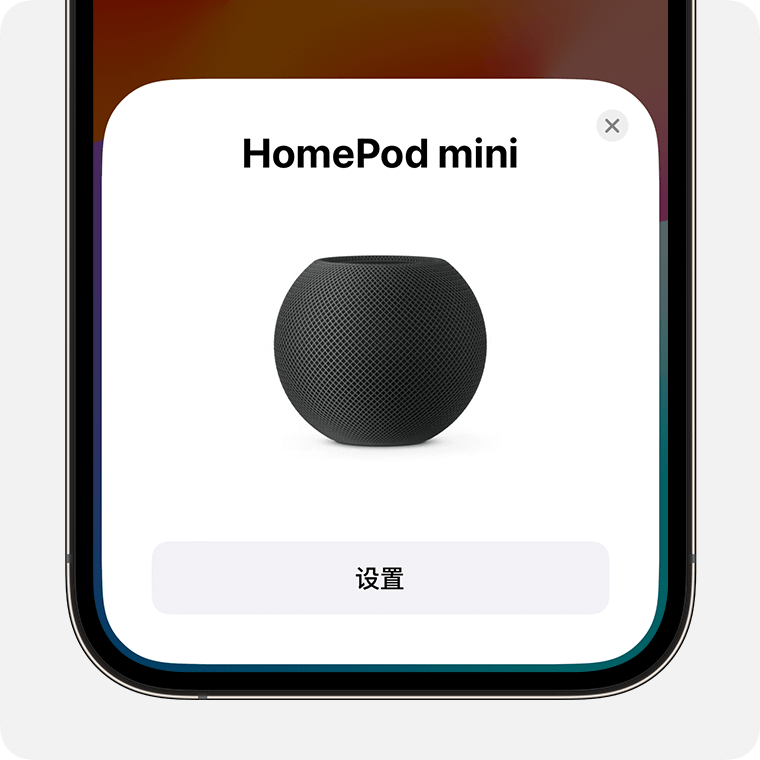
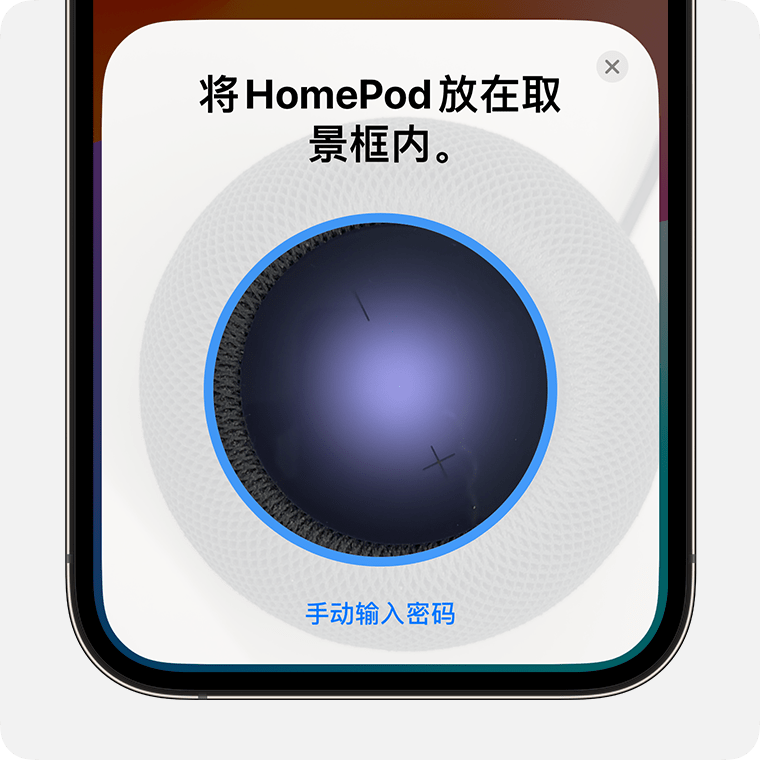
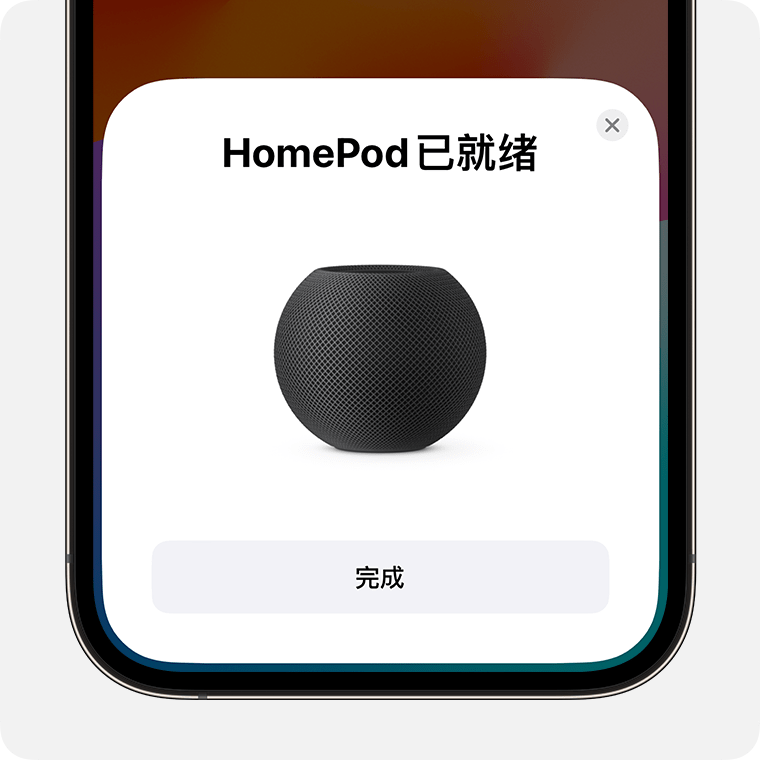
These Apple Support images show an iOS 17 example. Current iOS/iPadOS screens may look different. The setup flow transfers your phone or tablet’s Wi-Fi configuration to HomePod. Initial speaker setup is done with Apple’s tools.
- Power on HomePod and wait for the chime and pulsing white light.
- Unlock the iPhone or iPad, hold it nearby, and tap Set Up on the card.
- Center HomePod in the camera frame when prompted. If you cannot use the camera, choose manual passcode entry and enter the four digits Siri reads aloud.
- Choose a room and finish setup. Tap Done when ready, then allow configuration in the Home app to finish.
- If the card is missing, use Home → Add → Add Accessory → More Options and select the nearby HomePod.
2. Download and install ToneRelay
- Get ToneRelay-0.1.0-windows-x64-unsigned-setup.exe from Download ToneRelay for Windows.
- Compare the file size and checksum with the download page if needed. This installer is unsigned; Windows may show a publisher or SmartScreen notice. Review the source before deciding whether to run it.
- Run the installer and follow its language and install-location screens. Continue with the firewall confirmation described below.
- After installation, open ToneRelay from the Start menu and wait for its local service to become ready.
3. Approve firewall access: installer prompt and Windows approval
The installer asks whether to add one inbound allow rule for the bundled AirPlay sidecar. Choosing this may trigger a separate Windows User Account Control (UAC) prompt.
- At “ToneRelay can add one precise Windows Firewall inbound allow rule…”, choose Yes to configure the rule.
- If Windows requests administrator approval, review the request and approve it yourself, or ask your PC administrator to enter their credentials.
- The resulting rule is named ToneRelay Sidecar Inbound and targets binaries/airplay-sidecar.exe inside the installation folder.
- Choosing No, cancelling UAC, or a failed rule setup can still leave the app installed. Discovery or playback may fail; rerun setup to approve the step, or contact the administrator of a managed PC.
4. Refresh, select and connect on Devices
- Open Devices, click Refresh, and wait for discovery to finish.
- Find HomePod under Available speakers and click Select.
- In Current selection, click Connect and wait for Playing Windows audio.
- Play a familiar audio clip in your player or browser and confirm sound comes from HomePod. Verify audible output as well as the displayed status.
5. Adjust volume and stop on Now Playing
- Now Playing shows the selected speaker, connection state and elapsed time. Use the Volume slider once playback is connected.
- ToneRelay captures the current Windows default output. Spotify, YouTube, browsers and players must use that output; adjust apps routed to another audio device first.
- Click Stop to finish and wait for the session to stop before changing speakers or retrying.
- Designed for music and everyday listening. Network playback has delay; stereo pairs and multi-room sync are outside the current release scope.
6. Configure startup and automatic connection in Settings
The app supports sign-in startup and automatic connection. Fresh installations enable the first two options and disable minimized launch. Retained preferences may keep earlier values; configure each option independently.
| Control | What it does |
|---|---|
| Start on sign-in | Launch ToneRelay when you sign in to Windows. |
| Automatically connect to the last HomePod | On each app launch, try the last successfully connected, automatically discovered HomePod. Complete one successful connection first. |
| Launch minimized | Launch with the window minimized. Disable to show the window. |
- Choose Simplified Chinese or English as the app language.
- Manual IP receivers are not restored across restarts; use automatic discovery for the first connection.
- Audio settings offer buffer profiles; reconnect after changing the profile. The default Stable profile keeps more buffer reserve to reduce interruptions from brief capture jitter, with more playback delay. Compare the same audio; Low latency is not a promise of zero delay.
7. Trial, Pro activation and updates
No account is needed for the trial. The local seven-day trial starts at the first successful Playing state. If you have a Pro License Key, open License, paste it, and click Activate. Updates currently require downloading a newer installer from this website and installing it over the existing version.
Authorize or repair the firewall rule in the app
- Open Diagnostics and choose Run connection check.
- Only when the check confirms a missing or incorrectly configured rule, Authorize / repair firewall replaces Needs checking in the status column on the right of the firewall row. The button stays hidden for a correct or unconfirmed rule, or when network policy blocks inbound traffic.
- Click the button, then approve the Windows administrator prompt. You can retry after cancellation. Repair only adds or restores the rule for this installation’s audio service.
- Wait for the rule recheck. After Passed appears, connect and start playback manually as needed. Repair does not start playback. After a timeout, wait and rerun the check to confirm the actual rule state.
Troubleshoot the state you see
In Diagnostics, choose Run connection check. The dialog shows progress, results or the failed stage for discovery, default audio output, firewall rules, TCP reachability and the actual connection stage. Unchecked stages are not marked as passed; the check does not automatically connect or change system settings. Copy a summary or export redacted diagnostics for support.
| Symptom | First check |
|---|---|
| No speakers found | Confirm HomePod setup, local-network reachability and firewall approval, then refresh. |
| Connection needs attention | Check whether the speaker is busy or unreachable; stop an existing session before retrying. |
| Playing with no sound | Check the source audio, mute state, Windows default output, and app and speaker volume. |
| Desktop service could not start | Quit and reopen the app, then review Diagnostics if the error persists. |
Frequently asked questions
Which HomePod models does ToneRelay support?
ToneRelay supports the full HomePod lineup: HomePod (1st generation), HomePod (2nd generation), and HomePod mini. Play Windows 10/11 x64 default-output audio on a configured HomePod over the same reachable local network. ToneRelay has been tested with HomePod software 27.
Can Windows do the initial HomePod setup?
Use an iPhone or iPad for initial setup. HomePod receives its Wi-Fi configuration from that device. ToneRelay then sends Windows audio over the local network.
Does ToneRelay work with HomePod software 27?
ToneRelay has been tested with HomePod software 27. Verify discovery, connection and audible output with your own Windows, speaker and network setup. The current release supports HomePod or HomePod mini.